
How to Import REST API Data Into WordPress Automatically
Modern websites are expected to do more than display information that was typed into an editor months ago. Visitors increasingly expect current prices, fresh listings, live schedules, changing availability, recent scores, local weather, market movements, and other useful information drawn directly from the systems that produce it.
That is where REST API automation becomes valuable. Instead of repeatedly copying information into WordPress by hand, you can connect WordPress to an external data source, decide how incoming fields should be used, and automate the journey from API response to published content.
Quick answer: To import REST API data into WordPress automatically, you need to connect to an API endpoint, authenticate if required, retrieve and parse its response, map the returned fields to WordPress fields, clean and validate the data, and run the process on a schedule or event trigger. This can be done through a third-party automation service, custom code, or a purpose-built WordPress plugin such as Ingestics.
Why Dynamic Data Matters
Static content is not literally dead. Evergreen articles, service pages, documentation, landing pages, and brand stories still have lasting value. But a static-only website can quickly feel incomplete when users expect information that changes by the hour, minute, or event.
Dynamic data can turn WordPress from a collection of fixed pages into a useful, continually refreshed destination. For example:
- A financial website can publish scheduled stock-market summaries or price snapshots.
- A weather portal can display current conditions and location-based forecasts.
- A sports publication can ingest fixtures, results, rankings, or match reports.
- A cryptocurrency site can publish market updates and rate movements.
- A property website can add new real-estate listings from an external system.
- A job board can import current vacancies from a recruitment platform.
- An events website can publish upcoming sessions from a ticketing or calendar API.
- An affiliate or product site can ingest structured product information and source links.
- A research or news website can bring multiple approved data sources into one editorial workflow.
The important shift is not simply from “static” to “dynamic.” It is from repetitive manual work to a reliable content operation in which WordPress receives, organizes, publishes, and displays external data according to rules you control.
What is a REST API?
A REST API is a data pipeline between two applications.
Imagine that an external platform owns the information you need. It may hold weather readings, exchange rates, product records, match scores, or business listings. Its API provides an organized way for WordPress to ask for that information. WordPress sends a request, and the API returns a response that software can understand.
A typical exchange looks like this:
- WordPress requests data from an API URL, known as an endpoint.
- The API checks the request and any required credentials.
- The API returns the requested records in a structured format.
- WordPress reads the response and selects the fields it needs.
- Those fields are mapped to WordPress content, metadata, media, or taxonomies.
- The result is previewed, saved, published, displayed, or scheduled for later processing.
The API does not usually decide how the finished WordPress page should look. It delivers the raw ingredients. Your integration determines what to keep, where to place it, how to format it, and when to refresh it.
How Does API Data Become WordPress Content?
An automated API-to-WordPress workflow can be understood as a simple pipeline:
API source -> Request and authentication -> Response -> Parsing -> Field mapping
-> Cleaning and validation -> WordPress publishing -> Display and caching -> Repeat
Each stage solves a different problem.
1. Connect to the endpoint
An endpoint is the API URL that provides a particular resource. One endpoint may return products, another may return categories, and another may return a single product by ID. The API documentation normally explains the available endpoints, request methods, parameters, limits, and authentication rules.
Most data retrieval uses an HTTP GET request. Some APIs require POST, PUT, PATCH, or DELETE for other operations. A WordPress import workflow should use only the method required by the source and should never assume that every endpoint behaves in the same way.
2. Authenticate the request
Public APIs may allow requests without credentials, but many APIs require authentication. Common methods include:
- An API key in a header or query parameter
- A Bearer token
- Basic authentication
- OAuth 2.0
- Signed requests for services such as AWS
Credentials should be protected, excluded from public output, and masked in logs or previews. They should never be hardcoded into front-end JavaScript or exposed in page source.
3. Parse the response
The response may contain one record or an array of records, often nested inside objects such as data, results, or items. The integration must identify the record path before it can process each item individually.
4. Map fields
Mapping tells WordPress what each API field means. A field named headline might become the WordPress post title. A field named body_html might become post content. A field named thumbnail_url might be downloaded into the Media Library and assigned as the featured image.
5. Publish and repeat
After validation, WordPress can create content immediately, save it as a draft or pending item for review, or publish it according to a schedule. Duplicate protection is essential so that the same source item is not unnecessarily created again on every run.
Understanding API Data Formats
JSON: The Dominant REST API format
JSON, or JavaScript Object Notation, is by far the most common format used by modern REST APIs. It is lightweight, readable, and well suited to structured records and nested data.
A simplified response might look like this:
{
  "results": [
    {
      "id": "news-1042",
      "title": "Market closes higher after a volatile session",
      "summary": "A concise summary supplied by the source.",
      "content": "The full article content supplied by the source.",
      "image_url": "https://example.com/images/market.jpg",
      "source_url": "https://example.com/articles/news-1042",
      "published_at": "2026-06-25T10:30:00Z"
    }
  ]
}
In this example, results is the collection path. Each object inside it is one record. The fields inside each record can be mapped to WordPress.
Other Formats you may encounter
JSON should be your first expectation, but it is not the only format used on the web:
- XML: A structured format still used by established systems and specialist services.
- RSS or Atom: XML-based feed formats designed for distributing articles, episodes, updates, and other time-based content.
- CSV: A table-like format commonly used for exports, spreadsheets, catalogs, and bulk records.
- HTML: Sometimes the required information is returned as markup and must be selected from page elements.
- Plain text: Useful for simple values or unstructured responses.
Ingestics can work with JSON, XML, RSS, CSV, HTML, and text responses. It can also normalize a published Google Sheets CSV URL, which can be useful when a spreadsheet acts as a lightweight data source.
What Is Field Mapping?
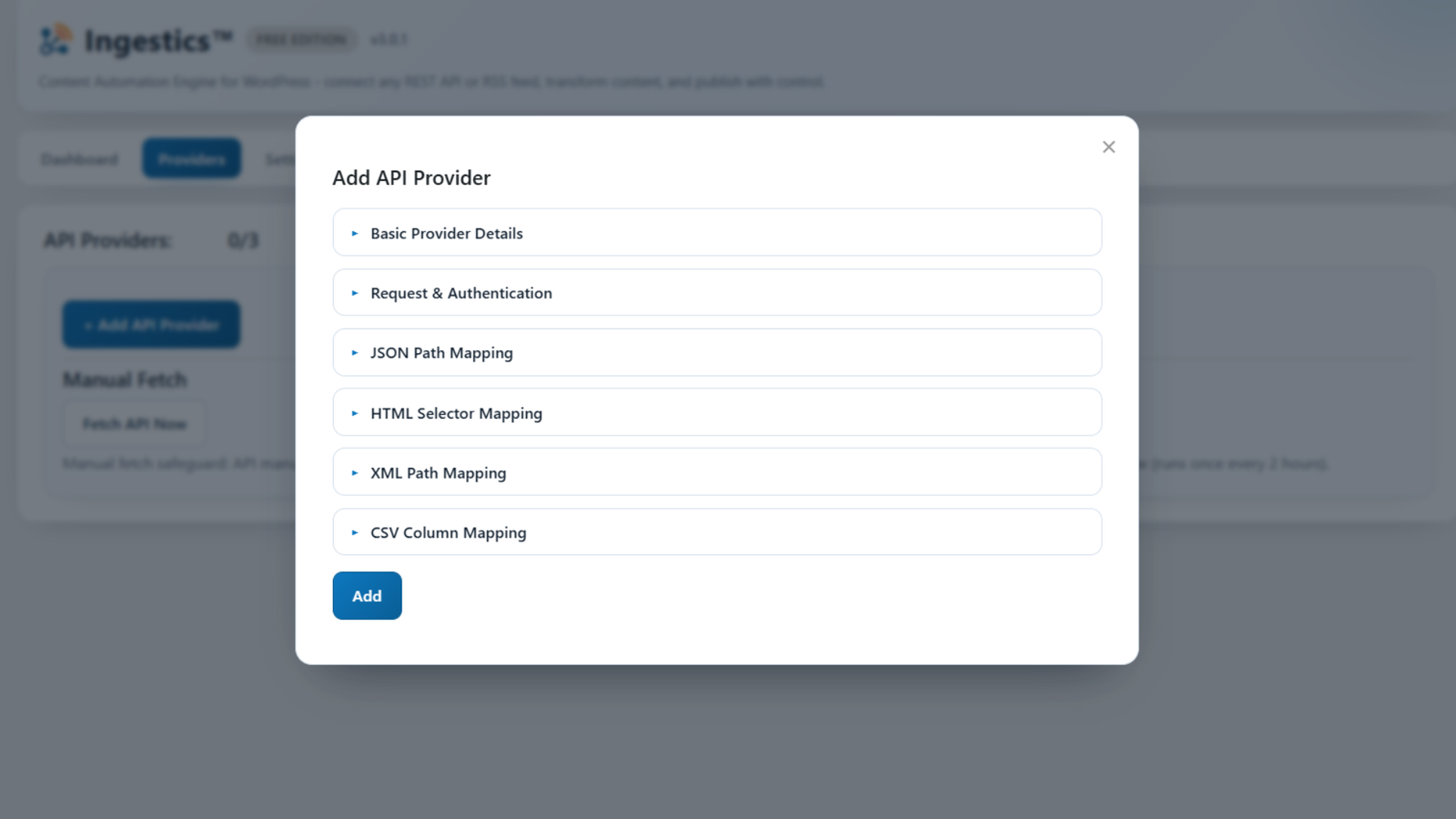
Field mapping is the bridge between the source data model and the WordPress content model.
The API may call a field name, while WordPress calls the destination post_title. The API may return details, while the destination is post_content. Mapping joins those two definitions without requiring the source to use WordPress terminology.
| API field | Possible WordPress destination | Purpose |
|---|---|---|
title or name | Post title | The main title of the record |
description or content | Post content | The full body of the item |
summary | Post excerpt | A short introduction or archive summary |
image_url | Featured image or media | Visual content downloaded from the source |
source_url | Attribution or custom field | Link back to the original source |
published_at | Source date or post date | Time associated with the source record |
category | Category or taxonomy term | Classification, when supported by the mapping workflow |
id | External identifier | Useful for duplicate detection and traceability |
price, score, or temperature | Custom field/post meta | Structured values used by a theme or template |
Mapping can be simple or deeply nested. A JSON path such as results.0.title points to a value inside a structured response. XML uses element paths, CSV uses column names, and HTML imports use selectors. A capable integration should let you preview the response before you commit to a mapping.
Where Can Imported Data Live in WordPress?
WordPress gives you several destinations, and choosing the right one makes the imported content easier to manage and display.
Posts
Posts work well for news, market updates, reports, match recaps, announcements, and any content organized chronologically.
Pages
Pages are useful for more permanent standalone resources. They are usually less suitable for importing hundreds of repeating records, but they can be appropriate when an API supplies a controlled set of durable pages.
Custom post types
Custom post types are ideal when imported records deserve their own content model. Properties, jobs, products, events, recipes, research papers, or sports fixtures can each have a dedicated post type with purpose-built templates and archives.
Taxonomies do not replace the content item; they organize it. Categories, tags, and custom taxonomies can group imported posts by region, topic, league, product type, source, or another meaningful classification.
Some workflows assign fixed WordPress terms at provider level, while others translate a different source category on each incoming item. Ingestics supports provider-level category and tag assignment from Lite upward, including configured taxonomy destinations. This is ideal when content from a provider belongs in a chosen WordPress category or taxonomy. A workflow that translates every individual source category into a different WordPress term requires separate mapping logic.
Custom fields and post meta
Structured values such as price, latitude, currency, rating, event date, score, or external ID often belong in custom fields. This keeps data reusable and makes it easier for a theme, block, shortcode, or page builder to display it consistently.
Media Library
Remote images can be downloaded into WordPress and attached as featured images. This can improve ownership and presentation, but it also introduces storage, copyright, image-quality, timeout, and duplicate-media considerations.
Primary Ways to Import REST API Data Into WordPress
There is no single method suitable for every organization. The right route depends on volume, budget, technical skill, workflow complexity, maintenance expectations, and how closely the automation needs to live inside WordPress.
Method 1: Use a Third-Party Integration Platform
Platforms such as Zapier and Make.com connect applications through visual workflows.
Typical workflow
Catch Hook/Webhook -> Retrieve API Data -> Transform Fields -> Create Post in WordPressThe workflow may begin when a source sends a webhook or when the automation platform runs on a timer. An HTTP step retrieves the data, transformation steps reshape it, and a WordPress action creates the post.
However, when the primary goal is simply to bring API or RSS content into WordPress on a recurring basis, this method has multiple limitations such as,
- Pricing can rise as tasks, operations, records, or workflow frequency increase,
- A single imported item may consume several billable steps,
- Complex arrays and nested JSON often require extra transformation stages,
- Credentials and operational logs are spread across another platform,
- The workflow depends on an external service in addition to the API and WordPress,
- High-volume imports can be harder to predict and budget,
- WordPress-specific publishing details may require additional actions or custom work.
Method 2: Use a Purpose-Built WordPress Plugin
For a WordPress-centered content workflow, a purpose-built plugin is usually the most practical route. It keeps provider setup, field mapping, publishing controls, logs, and display options close to the content team already working in WordPress.
Ingestics is such purpose built plugin. It is latest and most advanced wordpress plugin to connect any REST API or RSS feed to WordPress without writing a single line of code.
Why Ingestics is a strong choice
Ingestics is built specifically for API and RSS automation in WordPress. It brings ingestion, mapping, filtering, transformation, publication, and front-end display into one plugin rather than forcing teams to assemble a chain of middleware tools.
For direct API and RSS workflows, that can mean:
- No separate Zapier or Make.com workflow is required.
- No per-task automation fee is charged by the plugin.
- API and RSS providers are managed from WordPress.
- Requests and mappings can be previewed before publication.
- Incoming data can become native WordPress content.
- Scheduling, filters, webhooks, campaigns, AI tools, and advanced layouts are available across the appropriate commercial tiers.
- Activity logs and provider health information make the workflow easier to monitor.
Ingestics is the all-in-one WordPress plugin for automated content management.
Step-by-step: importing an API with Ingestics
Step 1: Review the API documentation
Identify the endpoint URL, request method, authentication method, response format, record path, pagination model, rate limit, and permitted use of the data. Test credentials should be used before production credentials wherever possible.
Step 2: Add the API provider
Create a provider in Ingestics and enter the endpoint. Configure the required method and authentication. The plugin supports common REST methods and authentication ranging from API keys, Bearer tokens, and Basic authentication to tier-dependent OAuth 2.0 and AWS Signature Version 4 workflows.
Step 3: Inspect the response
Run a manual preview to verify that WordPress can reach the endpoint and that the response contains the expected records. Sensitive values are kept out of ordinary public output and should remain masked during troubleshooting.
Step 4: Select the collection and map the fields
Identify the array or record path, then map the API fields to title, content, excerpt, URL, image, date, and other supported destinations. JSON path mapping helps reach nested fields without rewriting the source response.
Step 5: Choose the WordPress destination
Select the post type, author, publication status, categories, tags, and custom metadata available to your tier. You can use drafts for editorial review or publish automatically after the workflow has been tested.
Step 6: Protect content quality
Keep source attribution intact where required, use duplicate protection, and apply filters when the feed contains records you do not want. Pro adds advanced filtering, campaigns, fallback images, and other controls. Business extends the workflow with deeper filters, AI rewriting, translation, output controls, enterprise connectors, and more.
Step 7: Automate the provider
Free is well suited to configuring providers, running manual fetches, and proving the workflow. Lite adds recurring schedules and provider rotation. Pro adds more advanced scheduling and event-driven webhook options. Business separates API and RSS scheduling controls and supports custom operational requirements at a larger scale.
WordPress scheduled tasks normally use WP-Cron, which is triggered by site traffic. If exact timing is important, configure a real server cron to call WordPress cron reliably.
Step 8: Monitor the results
Review the activity log, provider status, created-item counts, HTTP errors, skipped duplicates, and pagination notes. Start with a small batch and a non-public status before increasing volume.
Practical Ingestics examples
Weather content
Connect a weather API, map the location to the title, place the forecast summary in the content, and store values such as temperature or humidity in custom metadata. A scheduled provider can publish regular forecast updates, while WordPress templates handle the presentation.
Sports scores and fixtures
Import fixtures into a dedicated custom post type, assign a league or sport taxonomy, and map team names, event dates, venues, and result summaries. Filters can restrict the workflow to relevant competitions. For frequently changing matches, decide whether you want periodic snapshot posts or a latest-results feed rather than assuming every request should create a permanent post.
Stock and cryptocurrency updates
Use an approved market-data API to publish timed market briefs, daily summaries, or periodic price snapshots. Extremely fast, tick-by-tick trading data has specialized latency, licensing, and infrastructure requirements; a normal WordPress publishing workflow is better suited to editorial updates and scheduled snapshots.
Product or affiliate content
Map product names, descriptions, images, prices, and source URLs into a product-oriented post type. Pro can help rewrite affiliate URLs and organize providers into campaigns. Always follow the source platform’s terms, price-display rules, and attribution requirements.
Choosing an Ingestics tier
- Free: Best for proving an API or RSS workflow with manual fetching, previews, basic authentication, mapping, source attribution, duplicate protection, and a limited number of providers.
- Lite: Best when you need recurring schedules, more providers, post-type and taxonomy controls, custom metadata, provider rotation, live previews, page/offset pagination, RSS full-text extraction, and front-end grid tools.
- Pro: Best for advanced filters, custom scheduling, cursor pagination, OAuth authorization-code workflows, event triggers, inbound webhooks, campaigns, fallback images, affiliate URL tools, integrations, alerts, and carousel display.
- Business: Best for unlimited providers, separate API and RSS schedules, advanced output modes, enterprise authentication, deeper connectors, AI rewriting, translation, stock-image fallback, external webhook bridging, ticker display, and advanced templating.
You can visit Ingestics to find current Ingestics features and plans.
Method 3: Build a Custom WordPress Integration
Custom code is where a developer can call the API with the WordPress HTTP API, parse the response, sanitize fields, insert posts, save metadata, schedule recurring events, and create an admin interface tailored to one source. But custom code generally makes sense only when,
- The integration is highly customized,
- Unlikely to fit a reusable tool, and
- You have high level budget for ongoing maintenance, testing, monitoring, and API changes.
Custom code is not a one-time copy-and-paste exercise. APIs change, authentication tokens expire, WordPress evolves, records become malformed, and network requests fail. Without developer assistance, a custom integration can become difficult to secure and expensive to maintain.
Which REST API Import Method Should You Choose?
For most teams whose destination is WordPress, the plugin route provides the best balance of control, speed, cost predictability, and maintainability. Visit Ingestics to find out more.
Common Questions About Importing REST API Data Into WordPress
Can WordPress import REST API data without custom code?
Yes. A plugin such as Ingestics can connect to the endpoint, authenticate the request, preview and parse the response, map fields, and create native WordPress content without requiring you to build the integration from scratch.
Does the API have to return JSON?
No. JSON is the dominant REST API format, but APIs and feeds may also return XML, RSS, CSV, HTML, or text. Ingestics supports these formats so the source does not have to be converted through middleware first.
Can API data be imported into a custom post type?
Yes. In Ingestics, post-type selection and related provider-level publishing controls are available from Lite upward. The custom post type should be publicly registered and ready before it is selected as a destination.
Can imported content be assigned to categories and tags?
Yes. Ingestics Lite and higher tiers can assign configured categories and tags at provider level. If you need every source item’s category value translated dynamically into a different WordPress term, treat that as a separate requirement and verify the exact mapping behavior before implementation.
Is an API import truly real-time?
It depends on the trigger. Scheduled imports are periodic, and WP-Cron timing can depend on site traffic unless a server cron is configured. Webhook or event-triggered workflows can be near-real-time, but they still depend on the source, network, hosting, queue, and publishing process.
How often should an API import run?
Run it only as often as the business case requires and the provider permits. Balance freshness against API limits, hosting capacity, content volume, and whether each run creates durable WordPress records.
Will the plugin update an existing post when source data changes?
Ingestics creates incoming WordPress content and protects against duplicates. It should not be presented as a general two-way synchronization or existing-post overwrite system. If record updates are essential, define that requirement explicitly before selecting the architecture.
Can imported data be displayed without rebuilding the theme?
Yes. Ingestics includes WordPress-native display options such as shortcodes, template tags, a Gutenberg block, and a widget. Higher tiers add grids, carousels, tickers, page-builder integrations, and advanced templates.
Conclusion: Turn External Data Into a WordPress Content Workflow
Importing REST API data into WordPress is not just a technical connection. It is a repeatable content operation:
- Choose a reliable and legally usable data source.
- Connect to the correct endpoint and authentication method.
- Parse the response and identify the record collection.
- Map source fields to the right WordPress destinations.
- Sanitize, validate, attribute, and protect against duplicates.
- Publish to posts, pages, custom post types, taxonomies, metadata, or media as appropriate.
- Schedule responsibly, cache intelligently, and monitor every run.
When the goal is to bring APIs and RSS feeds directly into WordPress, a purpose-built plugin like Ingestics gives most teams the clearest path from first test to dependable production workflow.
Ingestics – all in one Content Automation Engine
Ingestics brings API and RSS ingestion, mapping, publishing, automation, and display into one WordPress plugin. Start with the Free tier to configure providers, preview responses, map fields, and validate your first workflow. Move to Lite, Pro, or Business when you need recurring schedules, larger provider limits, advanced filters, webhooks, campaigns, AI tools, translation, enterprise connectors, or richer front-end layouts.
No middleware for direct API/RSS workflows. No per-task fees. One WordPress workspace for the full content pipeline.
Ready to automate your WordPress content pipeline?
Start Importing API and RSS data with Ingestics
Connect external sources, preview payloads, map fields, publish native WordPress content, and scale from free testing to commercial automation without middleware or per-task platform fees.